How to add events from Google Sheets to Google Calendar
You've got a schedule, rota or timetable in a spreadsheet and you want it in Google Calendar. There are three ways to do it, from a one-off import to a sheet that stays in sync. Here's how each one works and where it falls down.
Updated October 2026
Which method should I use?
| CSV import | Apps Script | Add-on | |
|---|---|---|---|
| Set-up | 5 minutes | 20–60 minutes, some code | 2 minutes |
| Change a row later | Re-import makes duplicates | Updates, if you write it to | Updates the same event |
| Guests, repeats, colours | No | With more code | Yes, from columns |
| Undo | Delete events by hand | No | One click |
| Cost | Free | Free | Free up to 25 rows |
Method 1: export a CSV and import it into Google Calendar
Google Calendar can import a CSV file, as long as the columns have the names it expects. This works for a one-off batch of events.
- Rename your header row to Calendar's column names. Only Subject and Start Date are needed:
Subject,Start Date,Start Time,End Date,End Time,All Day Event,Description,Location,Private. - Make dates US style (
10/14/2026) and times like2:00 PM. Use Format → Number → Custom date and time so the export comes out right whatever your sheet's locale is. - File → Download → Comma-separated values (.csv). This exports the current tab only.
- In Google Calendar, open Settings → Import & export, choose the file, pick the calendar and press Import.
Method 2: an Apps Script that keeps the sheet and calendar in step
Apps Script is free and built into Sheets. The script below creates an event for each row and writes the event's ID back into the sheet, so running it again updates the event instead of making a duplicate. Most scripts you'll find online skip that part.
- Set up columns A Title, B Start, C End, D Location and an empty E Event ID. Start and End must be real date-and-time cells (they line up right when you type them), not text.
- Open Extensions → Apps Script, replace the code with this, and save:
// Creates or updates one Google Calendar event per row.
// Columns: A Title, B Start, C End, D Location, E Event ID (leave empty: the script fills it in)
function syncToCalendar() {
  const sheet = SpreadsheetApp.getActiveSheet();
  const calendar = CalendarApp.getDefaultCalendar();
  const rows = sheet.getDataRange().getValues();
  for (let i = 1; i < rows.length; i++) {
    const [title, start, end, location, id] = rows[i];
    if (!title || !(start instanceof Date)) continue;
    const finish = end instanceof Date ? end : new Date(start.getTime() + 60 * 60 * 1000);
    const event = id ? calendar.getEventById(id) : null;
    if (event) {
      event.setTitle(title);
      event.setTime(start, finish);
      event.setLocation(location);
    } else {
      const created = calendar.createEvent(title, start, finish, { location: location });
      sheet.getRange(i + 1, 5).setValue(created.getId());
    }
  }
}- Press Run. The first time, Google asks you to allow access to your calendar and sheet.
- To use another calendar, swap
getDefaultCalendar()forgetCalendarById('…'), using the ID from that calendar's settings page.
Things the simple script doesn't handle, and that trip people up:
- Events an hour out. Check that the script's time zone (Apps Script → Project settings) matches the spreadsheet's (File → Settings). If you build dates from text with
new Date('…'), they're read in the script's zone, and that's where the hour usually goes. - All-day events. These need
createAllDayEvent, and the end date is the day after the last day. - Repeats and guests. Recurring events need
createEventSerieswith a recurrence rule. Guests go in theguestsoption as a comma-separated list, and they're only emailed if you also passsendInvites: true. - Limits. One run stops after 6 minutes, and a Google account can create about 5,000 events a day (10,000 on Workspace).
- Deleted rows leave their events behind, and there's no undo if a run goes wrong.
Method 3: Sheet to Calendar Sync (an add-on)
Sheet to Calendar Sync is our add-on, and it does what the script does plus everything on that list: columns matched by header, repeats in plain words ("weekly on Mon and Wed until 18/12/2026"), guests without surprise invitations, colours, Meet links, a different calendar per row, and times that land exactly as typed.
- Install it from the Google Workspace Marketplace.
- In your sheet, choose Extensions → Sheet to Calendar Sync → Open.
- Pick the calendar. Columns such as "Event", "Date", "Start time" and "Attendees" are matched for you.
- Press Preview to see every event that will be created, then Sync to Calendar.
Edit a row and sync again, and that event moves. Nothing is duplicated. A Sync status column links each row to its event, and Undo last sync puts everything back. It's free for the first 25 rows of each sheet. Pro is $5 a month for all rows, plus Google Form responses added automatically.
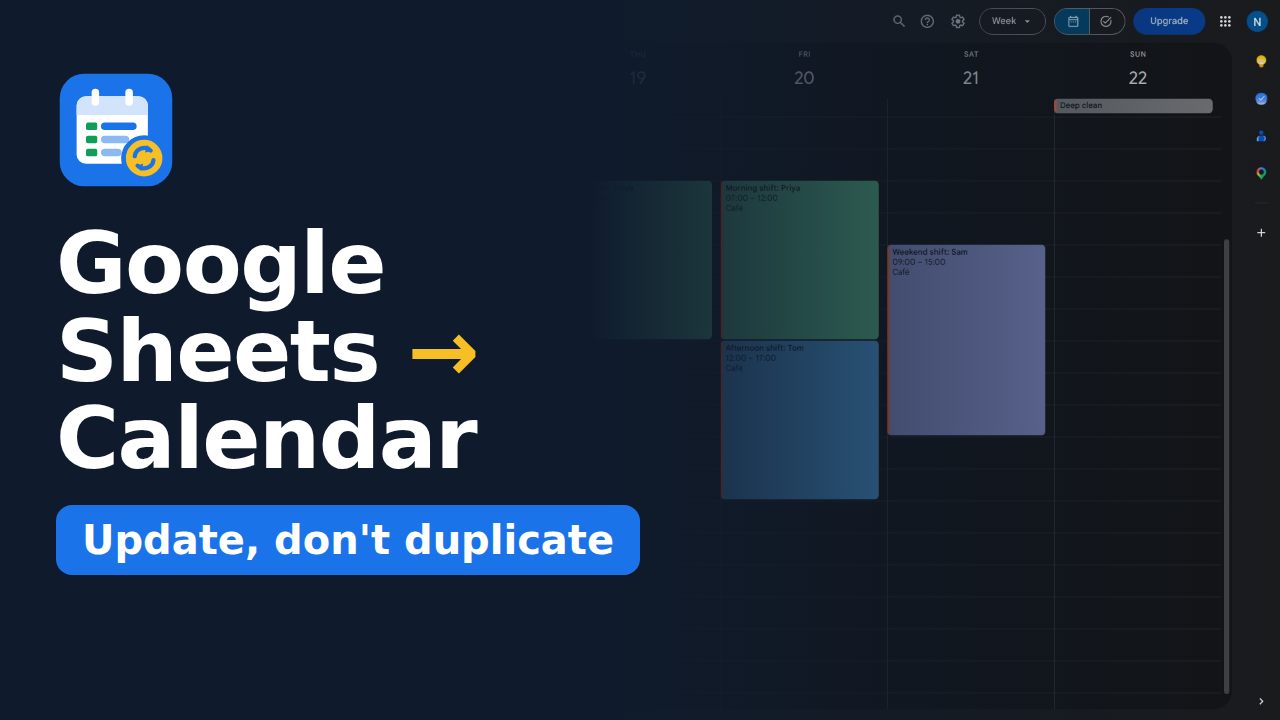
Here's the whole thing in three minutes:
Common questions
Why do my events show up an hour late?
The time was read in one time zone and shown in another. Usually it's the script or add-on's zone versus the spreadsheet's, or a date typed as text during summer time. Make the zones match, or use a tool that sends the spreadsheet's zone with each event.
Can I update events after importing them?
Not with a CSV import. Calendar has no link back to your rows. You need something that stores each event's ID next to its row, as the script and add-on above do.
Can Google Sheets sync with Google Calendar automatically?
There's no built-in sync. A script can run on a timer (Apps Script → Triggers), and the add-on syncs when you press the button, or by itself for each new Google Form response.
Will my guests get emailed?
A CSV import can't add guests. In Apps Script, guests only get an email if you pass sendInvites: true. Sheet to Calendar Sync adds guests quietly unless you turn invitations on.