 Onibaku
HubSpot records, in the right row
Onibaku Sheets Sync adds HubSpot workflow actions that add a row, or update the matching row, in a Google Sheet. Owners and stages arrive as names, dates as real dates, and columns are found by their headings.
Needs HubSpot Professional or Enterprise for workflows, and a Super Admin to install.
| A | B | C | D | E | F | |
|---|---|---|---|---|---|---|
| 1 | Deal stage | Amount | Close date | Deal owner | Synced at | |
| 2 | ada@marlowfinch.co.uk | Closed won | 4,800.00 | 12/11/2026 | Priya Shah | 12/11/2026 09:14 |
| 3 | tom@hollis.studio | Contract sent | 1,250.00 | 18/11/2026 | Ben Okafor | 13/11/2026 16:02 |
| 4 | grace@northfold.io | Closed won | 9,600.00 | 14/11/2026 | Priya Shah | 14/11/2026 11:47 |
| 5 | ||||||
| 6 |
What it fixes
The same record, written by a plain sync and by Sheets Sync.
- Close dateA plain sync writes
1794441600000 - Deal ownerA plain sync writes
78213904 - Deal stageA plain sync writes
closedwon - After you move a columnA plain sync:
Mapping resetSheets Sync: Still found by its heading - Same email againA plain sync:
A second rowSheets Sync: The first row, updated
Every run, every column
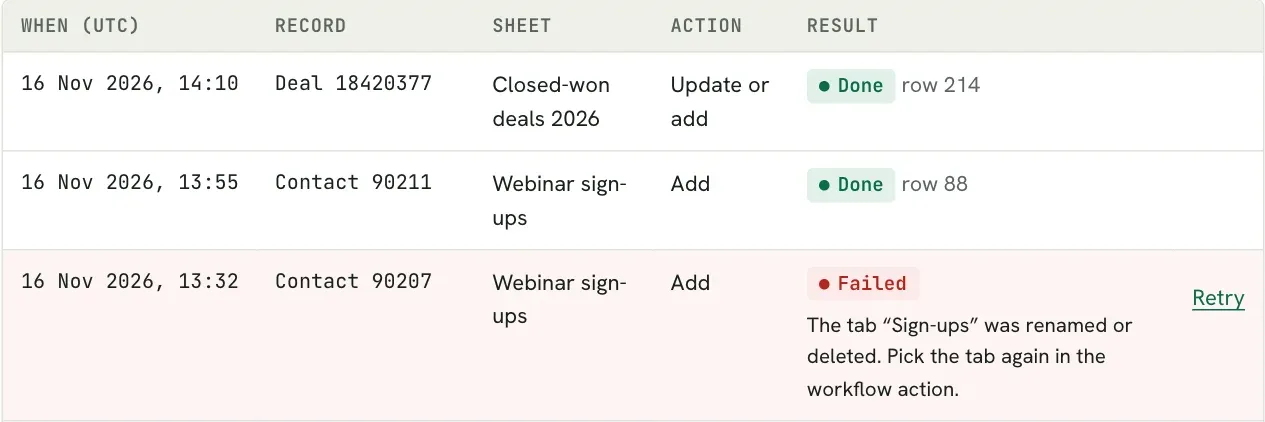
Every heading in row 1 is matched to the HubSpot property with the same name. Move, insert or rename columns and nothing needs remapping. There’s no column limit.
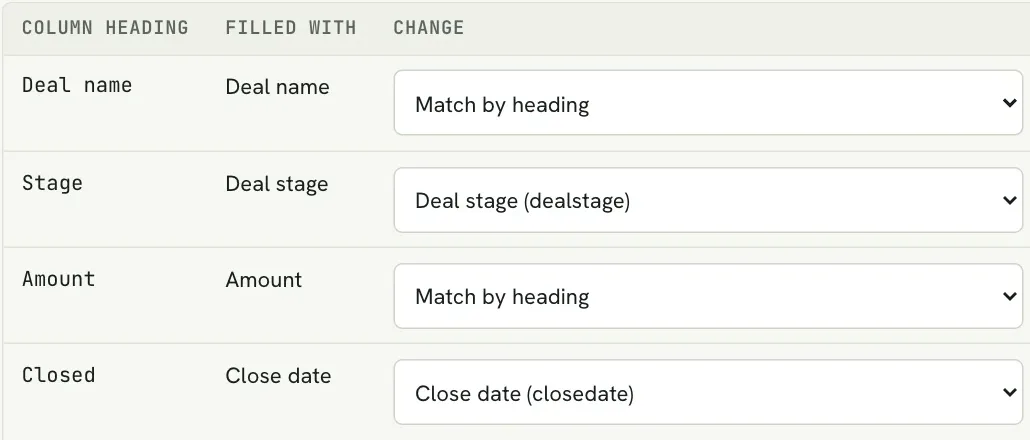
It’s a normal workflow action
Pick the spreadsheet, the tab and, for updates, the column to match on. That’s the whole set-up inside HubSpot.
Read-only access to your CRM. The app can open only the spreadsheets you choose with Google’s file picker, never the rest of your Drive.
Pricing
$15
a month for Pro, or $150 a year, for the whole HubSpot account.
Early access: install before our HubSpot Marketplace launch and get Pro free for 12 months, with no card needed. It’s switched on automatically.
Free for up to 100 rows a month per HubSpot account. Pro is $15 a month or $150 a year for unlimited rows, for the whole HubSpot account. Cancel any time. The actions need HubSpot workflows, which come with Professional and Enterprise plans.
Install in HubSpotSetup guide
Install
- Click Install on the HubSpot App Marketplace listing, or go to sheets.onibaku.co.uk/install. You need to be a Super Admin, or have the App Marketplace access permission, in your HubSpot account.
- Choose the HubSpot account and approve the permissions. The app only reads records, owners, pipelines and properties. It never changes your CRM.
- You land on the app’s settings page. You can come back to it any time at sheets.onibaku.co.uk by signing in with HubSpot.
Connect Google and add your spreadsheets
- On the settings page, click Connect Google and sign in with the Google account that owns, or can edit, your spreadsheets.
- Click Add a spreadsheet and choose it in Google’s file picker. Add each spreadsheet a workflow should write to.
- Type column headings in row 1 of each tab, for example Email, First name, Contact owner, Lifecycle stage, Create date, Record URL.
Choose your columns
Each column is filled from the HubSpot property whose name or label matches its heading, ignoring capitals, spaces and punctuation. Short forms work too: Owner, Stage, Pipeline, Name, Phone. These extra headings are filled by the app itself:
| Heading | Filled with |
|---|---|
| Record ID | The HubSpot record ID |
| Record URL | A link to the record in HubSpot |
| Object type | Contact, company, deal or ticket |
| Synced at | When the row was written |
| Workflow ID | The workflow that wrote the row |
Columns that match nothing are left alone, so you can keep your own notes and formulas beside the synced data. To choose a different property for a column, click the spreadsheet on the settings page and change it there. Choices are saved against the heading text, so moving columns never loses them.
Use the actions in a workflow
- In HubSpot, open or create a contact, company, deal or ticket workflow.
- Add an action and pick Add row to Google Sheet or Update or add row in Google Sheet from the Onibaku Sheets Sync section.
- Choose the spreadsheet and tab. For Update or add, also choose the column to match rows on, such as Email or Record ID.
- Save and turn the workflow on.
Each run is written within a few seconds. The action’s output includes the row number, which later actions can use.
When something goes wrong
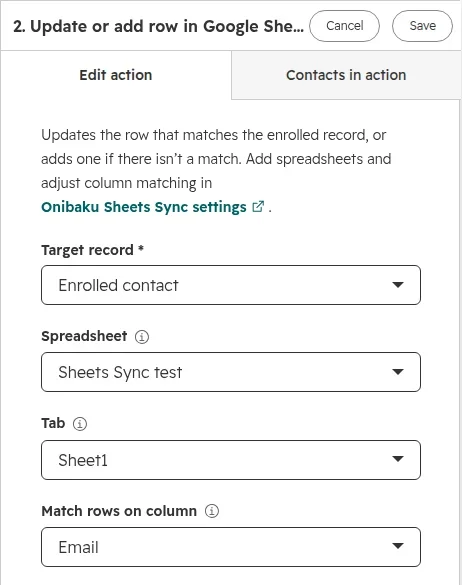
The workflow history in HubSpot shows a plain-English reason, such as a missing tab or heading, and the Activity list on the settings page shows every run with its result. Runs that hit a temporary problem are retried automatically; ones that failed can be retried from the activity list once you’ve fixed the cause. If runs keep failing, the person who installed the app gets an email, at most once a day.
Disconnect and uninstall
- Stop using a spreadsheet: click Remove next to it on the settings page. Workflows that use it then fail with a clear message until you choose another.
- Disconnect Google: click Disconnect Google. The app’s access token is revoked and deleted; workflow runs fail until you connect again.
- Uninstall: click Disconnect HubSpot at the bottom of the settings page, or uninstall the app from Connected apps in HubSpot’s settings.
What uninstalling does to your data: the app deletes its stored HubSpot and Google access tokens, your list of spreadsheets and your column choices: straight away if you use Disconnect HubSpot, or within an hour if you uninstall from HubSpot’s settings. The activity log of past runs is kept for 30 days for support, then deleted. Your spreadsheets and everything already written to them are untouched, and nothing in HubSpot is changed. The actions stop working in your workflows; remove them from the workflows if you don’t reinstall.
Support
Email admin@onibaku.co.uk. We reply within two working days.
See our privacy policy and terms. The app reads your CRM and never writes to it. What uninstalling deletes is in the setup guide.
HubSpot is a trademark of HubSpot, Inc. Google Sheets is a trademark of Google LLC. Onibaku Sheets Sync isn’t made or endorsed by either.