How to number headings in Google Docs
Word can number headings 1, 1.1, 1.1.1 by itself. Google Docs can't: there's no heading numbering setting, so you either type the numbers, borrow a numbered list, or let a script or add-on do it. Here are the three ways, and where each one falls down.
Updated October 2026
First: use heading styles
Every method below works from heading styles, not big bold text. Select each section title and choose Format → Paragraph styles → Heading 1 (or 2, 3 for sub-sections). The outline on the left of the document shows whether you've got them all.
Method 1: a numbered list on the headings
- Click in your first Heading 1 and choose Format → Bullets & numbering → Numbered list, then pick the 1, 1.1, 1.1.1 style.
- Apply the same list to each of the other headings. When Docs asks, choose Continue previous numbering rather than starting at 1 again.
- For each Heading 2, click at the start of it and press Tab to move it down a level, so it becomes 1.1.
Things to know:
- Levels come from indenting, not from the heading style. Docs doesn't know a Heading 2 should be 1.1, so every sub-heading needs its own Tab, and a new heading you add later starts at the wrong level until you fix it.
- Numbers can restart. Copying a section in, or applying the list to a heading that's far away, often starts a new list at 1. Right-click the number and choose Continue previous numbering to join it back up.
- The table of contents leaves the numbers out. List numbers aren't part of the heading's text, so Google's table of contents and the outline only show the titles.
- There's no way to refer to "section 3.2" elsewhere in the document and have it change when the number does.
Method 2: an Apps Script
This script writes the numbers into the headings as text, so they show in the table of contents and in exports. Run it again after you move sections and it replaces the old numbers.
- In the document, choose Extensions → Apps Script, paste this and save:
// Numbers Heading 1 to Heading 3 as 1, 1.1, 1.1.1. Run it again to renumber.
function numberHeadings() {
  const H = DocumentApp.ParagraphHeading;
  const levels = [H.HEADING1, H.HEADING2, H.HEADING3];
  const counts = [0, 0, 0];
  const body = DocumentApp.getActiveDocument().getBody();
  body.getParagraphs().forEach((p) => {
    const level = levels.indexOf(p.getHeading());
    if (level < 0 || !p.getText().trim()) return;
    counts[level]++;
    counts.fill(0, level + 1);
    const text = p.editAsText();
    const old = p.getText().match(/^\d+(\.\d+)*\s+/); // a number from a previous run
    if (old) text.deleteText(0, old[0].length - 1);
    text.insertText(0, counts.slice(0, level + 1).join('.') + ' ');
  });
}- Choose numberHeadings in the function menu, press Run and allow access.
Things to know:
- It can't tell its numbers from yours. A heading called "2026 Budget" loses its "2026" on the second run, because it looks like a number the script added.
- Skipped levels look odd. A Heading 3 straight under a Heading 1 comes out as 1.0.1.
- Only the first tab. In a document with tabs,
getBody()only sees the first one. - Headings such as Contents or References get numbered too, unless you add a check for them. To take the numbers off, you'd need a second script.
Method 3: Heading Numbering & Table of Contents, no code
Heading Numbering & Table of Contents is an add-on that does what the script does, without the sharp edges. Decimal numbering is free.
- Install it from the Google Workspace Marketplace.
- In your document, choose Extensions → Heading Numbering & Table of Contents → Open.
- Pick which heading levels to number. If Heading 1 is your document's title, start at Heading 2. The preview shows the result before anything changes.
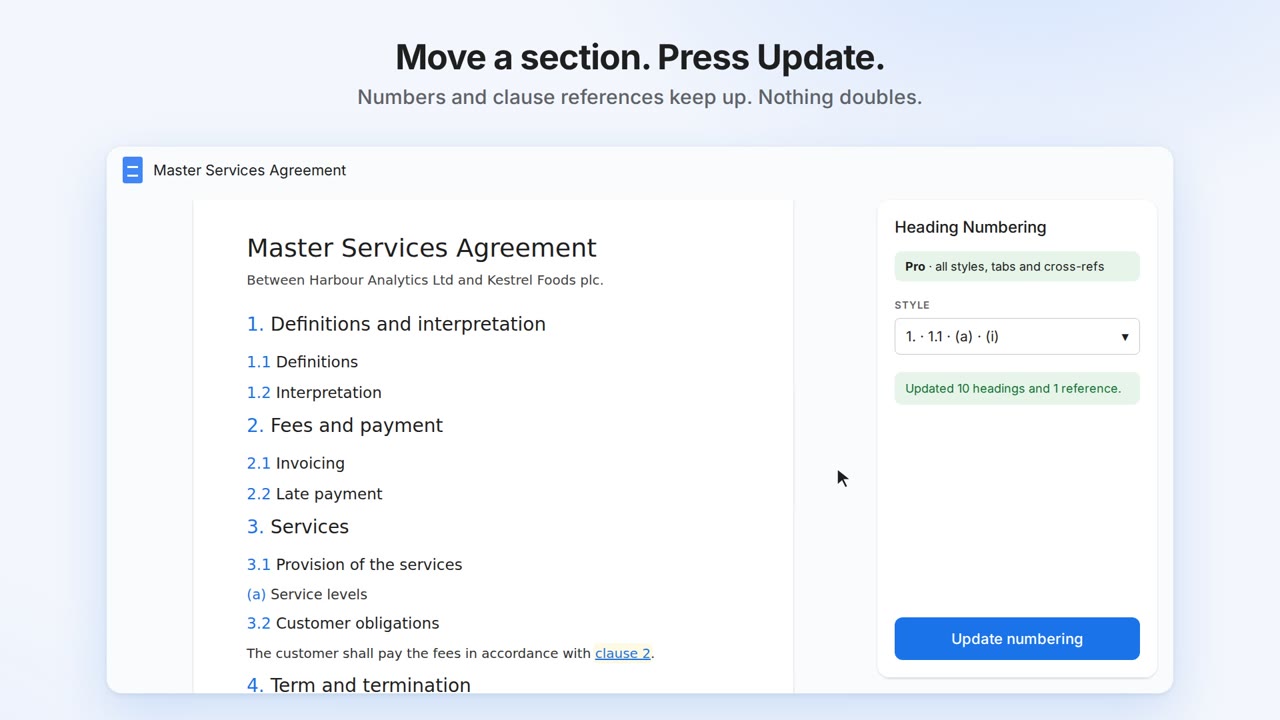
- Press Update numbering. After moving, adding or deleting sections, press it again.
It marks its own numbers, so "2026 Budget" keeps its 2026 and running it twice never doubles anything. Contents, Abstract and References are left unnumbered by default, typed numbers like "2.1 Scope" are spotted and can be replaced, and Remove takes every number off again. It can also insert a linked contents list that refreshes when you renumber.
Pro, at $4 a month or $29 a year, adds legal (1.1, (a), (i)), outline (I. A. 1.) and custom styles such as "Article 1", numbering across every document tab, and cross-references to "section 3.2" that update when the numbers change.
Here it is in 30 seconds:
Get Heading Numbering & Table of Contents
Common questions
Does Google Docs have automatic heading numbering?
No. It has heading styles, an outline and a table of contents, but nothing that numbers headings by level. A numbered list gets close, but the levels have to be set by indenting each heading.
How do I get the numbers into the table of contents?
The numbers need to be part of the heading text, as Methods 2 and 3 do it. Then click the table of contents and press its refresh button.
Will the numbers survive a PDF or Word export?
Yes, with Methods 2 and 3, since the numbers are ordinary text. List numbers usually survive too, but can change style in Word.
Numbering contracts?
See how to number clauses in Google Docs, for 1.1, (a), (i) and clause references.
Writing a thesis or paper?
Effortless Academic has a good walkthrough of how to write a research paper in Google Docs, from structure to references, plus more tools and tips for academic writing at Effortless Academic.
Google Docs™ and Google Apps Script™ are trademarks of Google LLC. This add-on is not made or endorsed by Google.